
By Abdul Shakoor
If you’ve built forms or queries in Microsoft Access, you’ve probably hit this maddening moment: a user pastes in a few lines of notes or a description, and suddenly your query fails, your validation rule rejects perfectly good data, or the record just won’t behave. Nine times out of ten, the culprit is something almost invisible — the humble line break, known in MS Access CHR(10) as the line feed character.
The frustrating part is that everything looks fine. The text is valid, the field seems right, and yet the rules you carefully wrote fall apart the moment input spans multiple lines. This guide explains exactly what CHR(10) is, why multi-line input trips up Access validation, whether Access can genuinely handle something like 30 lines of text, and how to set things up so it all just works — reliably and safely.
What MS Access CHR(10) actually is
In Microsoft Access, CHR(10) is the line feed character — in plain terms, a new line. It usually travels with its partner, CHR(13), the carriage return. Together, CHR(13) & CHR(10) form a proper line break: the thing that happens when a user presses Enter inside a Comments, Notes, or Description field.
On its own that sounds harmless. The trouble is that these characters are completely invisible. You can’t see them in the data, but they’re absolutely there — and Access’s logic reacts to them even when your eyes can’t.
📌 The catch with CHR(10): Line breaks are completely invisible in your data — you can’t see CHR(10) or CHR(13), but Access’s logic still reacts to them. That’s exactly why multi-line bugs are so confusing: the text looks perfectly fine, yet the rule fails.
Why multi-line input breaks validation
Here’s the root of the whole problem: most Access validation rules are quietly written with single-line input in mind. When a user enters ten, twenty, or thirty lines, the validation engine suddenly has to cope with those hidden CHR(10) and CHR(13) characters scattered through the text — and it often doesn’t cope gracefully.
The result is that pattern-matching rules misfire, rule checks fail, and genuinely valid data gets rejected. A rule that works flawlessly on “John Smith” falls apart on a three-line address, not because the data is wrong, but because the invisible line breaks confuse the pattern. This is the same class of trap behind a lot of dangerous validation mistakes — the rule looks correct until real-world input doesn’t match the neat assumption it was built on.
Validation rules and validation text, briefly
Two Access concepts sit at the center of this. A Validation Rule defines what data is allowed — for example, Len([Comments]) <= 255 limits length. Validation Text is simply the error message shown when the rule is broken, like “Input must not exceed 255 characters.” The rule enforces; the text explains. Keeping the text clear matters more than people think, because a cryptic rejection just leaves users guessing what went wrong.
Can Access really handle 30 lines?
The short answer is yes — but only if you configure it correctly. Whether Access handles thirty lines of input comes down to a few things: the field type, the validation rules, and how line breaks are processed in your queries.
The single most important factor is field type. A Short Text field caps out at 255 characters, which multi-line input blows past quickly. A Long Text (Memo) field holds far more — up to roughly 65,536 characters. So the very first rule of handling many lines of input is simple: use a Long Text field. Try to cram thirty lines into Short Text and you’ll get truncation and errors before you even reach the validation stage.
✅ ✅ The first fix, always: Use a Long Text (Memo) field for anything multi-line. Short Text caps at 255 characters and will truncate long input before validation even runs. Long Text holds up to ~65,536 characters — enough for 30 lines and far beyond.
Short Text vs Long Text: The Key Choice
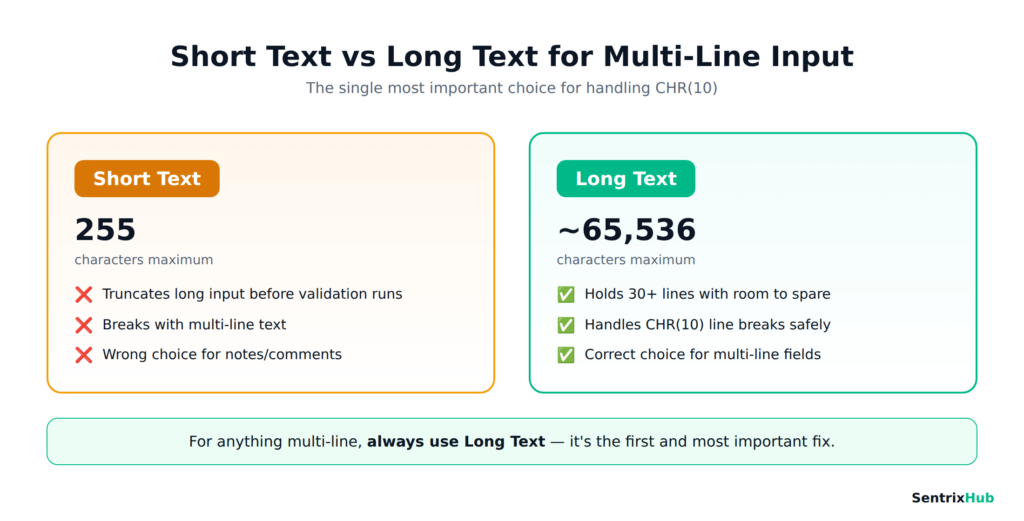
The single biggest factor in handling multi-line input is the field type. Short Text caps at 255 characters and truncates long input before validation even runs, while Long Text holds up to ~65,536 characters and handles CHR(10) line breaks safely. For anything multi-line, Long Text is always the right choice.
Setting it up properly, step by step
Getting multi-line input to behave reliably is really a sequence of small, deliberate choices.
Start with a Long Text field. Set the field’s data type to Long Text so it can actually hold the volume you expect. Allow line breaks in the form by setting the control’s Enter Key Behavior to “New Line in Field,” so pressing Enter creates a line break instead of moving to the next control.
Handle CHR(10) in queries rather than pretending it isn’t there — where line breaks would break your logic, normalise them first, for example replacing Chr(13) & Chr(10) with a space. Loosen overly strict validation rules: a rigid pattern like Not Like "*[!A-Za-z]*" will choke on line breaks, so prefer a simple length check such as Len([YourField]) <= 5000. And finally, test with real multi-line input — five lines, fifteen, thirty — rather than only the tidy single-line examples that hide the bug.
⚠️ Where multi-line bugs hide: Strict pattern rules like Not Like “[!A-Za-z]” or Like “text” break the moment an invisible line break appears. For multi-line fields, prefer a simple length check such as Len([YourField]) <= 5000, and normalize line breaks in queries when needed.
Watch: Validation Rules in Access
If you’d rather see these settings applied than read through them, the video above walks through validation rules and field setup in Access. Even if it uses slightly different examples, the same principles — Long Text fields, sensible rules, and handling line breaks — apply directly to CHR(10) multi-line input.
The common issues (and what causes them)
Almost every multi-line headache in Access traces back to a handful of recurring problems. Validation rules fail inside queries when the rule wasn’t written with line breaks in mind. Pattern matching breaks because rules like Like "*text*" behave unexpectedly once invisible line breaks appear. Hidden characters cause errors precisely because CHR(10) and CHR(13) can’t be seen but still affect the logic. Append queries fail when inserting multi-line data that trips the destination table’s rules. And misconfigured field types — using Short Text where Long Text was needed — quietly truncate data and trigger errors downstream.
Notice the pattern: none of these are really about “bad data.” They’re about rules and fields that assumed input would be simpler than it actually is.
Some practical validation rule examples
For everyday fields, simple rules work best. An email field can use Like "*?@?*.?*", a phone field Like "##########", and a date-of-birth field <= Date() to reject impossible future dates. To limit input to a fixed set of options — say gender — In ("Male","Female") does the job cleanly. For anything that might hold multi-line text, lean on a straightforward length check like Len([Comments]) <= 5000 and avoid brittle blacklist patterns like Not Like "*badword*", which break the moment a line feed appears.
To enter any of these, open the table in Design View, select the field, type your expression into the Validation Rule box, and add a friendly message in Validation Text.
Why this matters for security, not just tidiness
It’s tempting to treat this as a cosmetic annoyance, but input validation is a genuine security boundary. Poorly handled input can lead to data corruption, application crashes, and — in the worst cases — injection attacks. OWASP consistently ranks improper input validation among the most serious and widespread weaknesses in software, which is exactly why an entire chapter of the OWASP ASVS standard is devoted to validation and business logic.
The relevance grows in modern architectures. Where Access sits behind an API, unhandled multi-line payloads can break backend logic or slip malformed data through — the same concern that makes API and firewall security treat all input as untrusted. Mobile apps that send multi-line comments or JSON to an Access backend hit the same wall: if CHR(10) isn’t handled, data integrity quietly erodes. And the underlying discipline — validate carefully, never assume clean input — is the very thing that prevents whole categories of bugs, from a broken query all the way up to an unrestricted file upload.
📌 More than tidiness: Input validation isn’t just about clean data — it’s a security boundary. Poorly handled input can lead to data corruption, crashes, and even injection attacks. OWASP ranks improper input validation among the most widespread software weaknesses.
The mistakes developers keep making
The recurring errors are very human ones. Assuming input is single-line. Writing overly strict rules with complex patterns that can’t survive a line break. Testing only short, tidy inputs so the bug never surfaces until production. Reaching for Short Text when Long Text was needed. And writing vague validation text that leaves users with no idea what to fix. Every one of these comes from the same optimistic assumption: that users will type exactly what we expect.
Best practices worth adopting
A few habits make multi-line input reliable. Keep validation rules simple rather than clever — complex expressions are where line-break bugs hide. Write clear validation text so users know how to correct their input. Handle line breaks explicitly in your logic instead of hoping they won’t appear. Test edge cases deliberately: empty input, very long input, and multi-line input every time. And normalize input where it makes sense, replacing line breaks before they reach code that can’t handle them.
Layering your validation helps too — checking at the form level, the query level, and the database level means a gap in one layer is caught by another. Sanitizing input early, logging validation failures so you can debug faster, and periodically auditing old rules that may no longer fit your data all pay off over time.
The bottom line
Handling CHR(10) and multi-line input in MS Access — even up to thirty lines — is entirely possible, but only with the right setup: a Long Text field, validation rules written for multi-line reality, explicit handling of line breaks in queries, and honest testing. Get those right and the frustrating failures simply disappear.
More than that, treating input carefully is a habit that pays dividends well beyond Access. In modern systems, a single unhandled line break can break a query, corrupt data, or open a door you didn’t mean to leave open. Mastering this small, invisible detail is a surprisingly big step toward building software that’s both reliable and secure.
Frequently asked questions
What is a validation rule and validation text in MS Access?
A validation rule defines what input is allowed (e.g. Len([Comments]) <= 255), while validation text is the error message shown when the rule is broken.
What is the maximum number of characters allowed in a text field in Access?
Short Text allows up to 255 characters; Long Text (Memo) supports roughly 65,536 characters — which is why multi-line input needs a Long Text field.
What is the main purpose of a query in Microsoft Access?
Queries retrieve, filter, transform, and insert/update/delete data — and in doing so they also enforce validation rules, which is where multi-line issues surface.
Which validation rule limits input to specific options?
Use an In (...) rule, for example In ("Option1","Option2"), to restrict a field to a fixed set of allowed values.
How do you handle multi-line input with CHR(10)?
Use a Long Text field, keep validation rules simple (favour length checks over strict patterns), and normalise line breaks in queries — for example replacing Chr(13) & Chr(10) with a space where needed
For related reading, see our guides on dangerous validation mistakes, the OWASP ASVS 5.0 standard, API and firewall security, and unrestricted file upload vulnerabilities.

Abdul Shakoor writes practical, defensive cybersecurity and networking guides for SentrixHub. He focuses on making API security, mobile app security, authentication, and network concepts simple for beginners and developers.