
By Abdul Shakoor
You’re watching a stream, everything’s fine, and then it just… stops. “Network Error. Please try again.” You refresh. Same thing. You check your internet — it’s fast, everything else loads instantly — but Twitch keeps choking. If you’ve been there, you already know how maddening it is, because everything says your connection is fine.
Here’s what most people miss: a “network error” on Twitch often has nothing to do with your internet speed. More often than I’d have guessed before I started digging into this stuff, the thing quietly killing the stream is your own security setup — a firewall, a VPN, or an API-protection system deciding that Twitch’s traffic looks suspicious and cutting it off.
That sounds backwards, I know. The tools meant to protect you are the ones breaking your stream. But once you understand why it happens, the fix is usually straightforward. Let me walk you through it.
First, what’s actually happening when Twitch “errors out”
What a Twitch Stream Actually Looks Like

A normal website loads once and sits there. Twitch is completely different — it’s a constant, live firehose of video data flowing from Twitch’s servers to your screen, second after second, with no break.
That stream passes through a whole chain to reach you: your device, your router, your internet provider, the content delivery networks (CDNs) that actually push the video, and Twitch’s own servers. If any link in that chain hiccups — even for a second — the player gives up and throws the network error.
So the error message is honest but unhelpful. Twitch genuinely can’t get the data through. What it doesn’t tell you is why. And a surprising amount of the time, the “why” is sitting inside your own network security, not out on the internet.
What a firewall actually does (the 30-second version)
If you already know this, skip ahead. If not, here’s the short version, because it explains everything that follows.
A firewall is a checkpoint between your device and the internet. Every piece of data trying to get in or out passes through it, and the firewall checks it against a set of rules — looking at things like which IP address it’s from, which port it’s using, and what kind of traffic it appears to be. Matches the rules? It passes. Doesn’t? It gets blocked.
That’s it. The problem is that “doesn’t match the rules” sometimes catches perfectly legitimate traffic — like a live video stream — in the crossfire.
Why streaming traffic confuses firewalls
When Security Mistakes Your Stream for a Threat
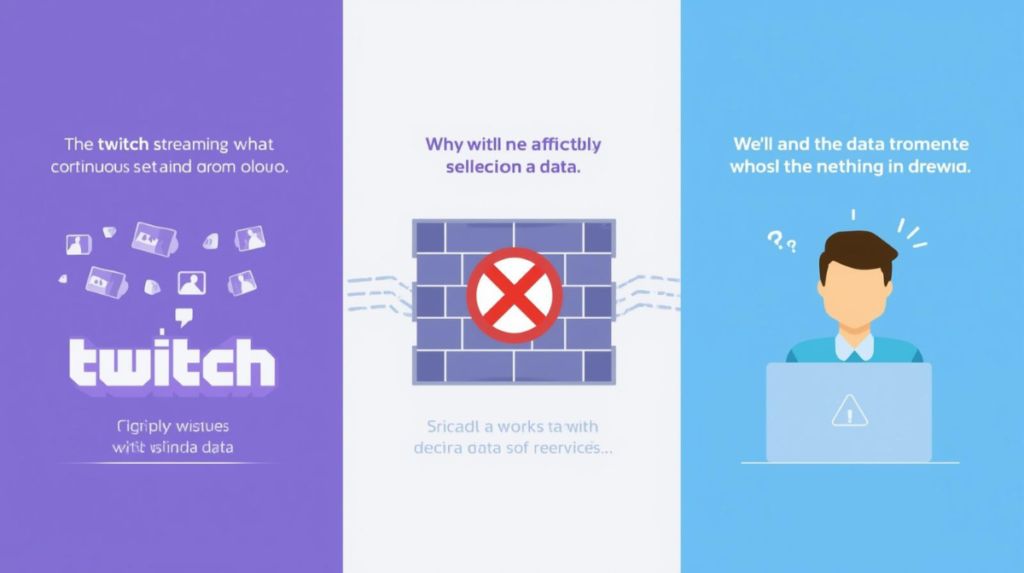
Here’s the irony at the heart of the problem: a firewall doing its job too strictly can mistake a normal Twitch stream for suspicious activity. The continuous, high-bandwidth, encrypted traffic of a livestream looks unusual to an over-cautious filter — so it blocks exactly the thing you’re trying to watch.
Here’s the thing that took me a while to appreciate: Twitch doesn’t behave like a normal website, and that’s exactly what trips up security software.
When you load a stream, your device is doing several things at once — authenticating your account, firing off API requests for stream info, connecting to the chat servers, and pulling live video from CDN servers. All of that runs through your firewall at the same time, continuously.
To an over-cautious firewall, that pattern can look alarming: heavy encrypted traffic, high bandwidth, connections to servers it doesn’t recognise. It doesn’t know it’s just someone watching a stream. So if the rules are strict enough, it does what it’s built to do — it blocks what looks unusual. And your stream dies.
This is more common on some networks than others:
On a home network, your router’s firewall rarely blocks Twitch unless something specific is switched on — parental controls, DNS filtering, or an “advanced threat protection” feature that’s a little too eager.
On a corporate or university network, it’s often deliberate. Many workplaces and campuses block streaming on purpose to save bandwidth and keep people focused. If you’re getting constant errors on office or campus Wi-Fi, that’s not a bug — it’s policy.
Where API security comes into it
There’s a second culprit that’s less obvious: API security.
Every Twitch stream runs on a web of APIs working in the background — pulling stream details, viewer counts, chat messages, quality settings, all of it. Because those APIs face the open internet, Twitch has to protect them from abuse: bots, scraping, credential-stuffing, denial-of-service attacks. Good API security is the reason Twitch stays standing under that kind of pressure. (If you’re curious how that protection actually works, I’ve written more about it in our API Security guides.)
The catch is that these protection systems sometimes flag innocent users. The classic example: you connect through a VPN. That VPN server is shared by thousands of people, all coming from the same handful of IP addresses. To Twitch’s anti-abuse system, that looks exactly like a bot farm — so it throttles or blocks the requests. Chat stops updating, the stream won’t load, and you get… the network error. Again.
📌 Worth knowing: If your stream breaks only when your VPN is on, the VPN almost certainly isn’t “broken.” It’s that Twitch’s security is treating its shared IP address as suspicious. Switching VPN servers often fixes it instantly.
Worth knowing: If your stream breaks only when your VPN is on, the VPN almost certainly isn’t “broken.” It’s that Twitch’s security is treating its shared IP address as suspicious. Switching VPN servers often fixes it instantly.
The specific firewall settings that block Twitch
If you want to get more precise, these are the usual suspects — the firewall behaviours that most often break streaming.
Blocked ports.
Twitch’s video runs over secure web traffic, which means port 443 (HTTPS). If something is filtering or restricting that port, the stream simply can’t get through. This is the single most common cause worth checking first.
📌 Quick tip: Port 443 (HTTPS) is the one to check first. It carries almost all of Twitch’s video traffic — if something is filtering or blocking it, the stream simply can’t load, no matter how fast your internet is.
Deep packet inspection (DPI).
Some advanced firewalls don’t just check the label on the traffic — they inspect the actual contents. Useful for catching malware, but it can misread encrypted streaming data as something shady and block it.
Application filtering.
Certain firewalls sort the whole internet into categories — gaming, streaming, social media — and block by category. If “streaming media” is switched off, Twitch goes down with it, no matter how fast your connection is.
VPN restrictions.
As I mentioned, lots of security systems treat VPN traffic with suspicion because it comes from shared IPs. That suspicion is what triggers the block.
A couple of real situations this explains
Abstract explanations only go so far, so here are two patterns that come up constantly.
A gamer with a blazing 300 Mbps connection keeps getting dropped mid-stream. Everything points to the internet being fine — because it is. The actual culprit turns out to be the router’s “advanced threat protection,” which was quietly blocking Twitch’s CDN servers. Switch that one setting off, and the stream runs perfectly. The speed was never the problem.
Or the campus scenario: a student tries to catch a stream between classes and hits error after error. Nothing’s wrong with their laptop or the Wi-Fi — the university just blocks streaming platforms by policy to save bandwidth. No amount of refreshing will fix that one, because it’s working as intended.
Before you go disabling your firewall — don’t
I want to flag this clearly, because it’s the most common mistake people make when troubleshooting: the moment streaming breaks, plenty of people just switch the firewall off entirely. Please don’t.
⚠️ Don’t do this: Never disable your firewall completely just to fix a stream. The right move is to allow Twitch specifically, not to leave your whole system open. One narrow exception is safe; an open door is not.
Your firewall is genuinely protecting you — from malware, remote intrusion attempts, unauthorised access, botnet traffic. Turning it off to watch a stream is like taking the lock off your front door because your key is stiff. You’ve solved a small annoyance by creating a much bigger risk.
Don’t do this: Never disable your firewall completely just to fix a stream. The right move is to allow Twitch specifically, not to leave your whole system open. One narrow exception is safe; an open door is not.
The correct approach is to create a specific rule that lets Twitch through while everything else stays guarded.
How to actually fix it, step by step
If you’d rather follow along visually, the video above walks through the same fixes step by step — checking your firewall, allowing Twitch through, and clearing the settings that usually cause these errors. Watch it first if you like, then use the written steps below as a checklist.
Here’s the order I’d troubleshoot in, from quickest to most involved.
Check your connection first — but properly. Don’t just glance at the speed; look for stability. A connection can be fast and still be dropping packets, which streaming hates. If it’s stable, move on, because the problem is elsewhere.
Turn your VPN off temporarily.
If the stream springs back to life the moment the VPN is off, you’ve found your answer. You don’t have to give up the VPN — just switch to a different server, ideally one that isn’t overloaded with shared users.
Check your firewall is allowing the basics — HTTPS traffic, your browser’s internet access, and that streaming isn’t sitting in a blocked category.
Allow Twitch (or your browser) through the firewall
Allowing Twitch Through Windows Firewall
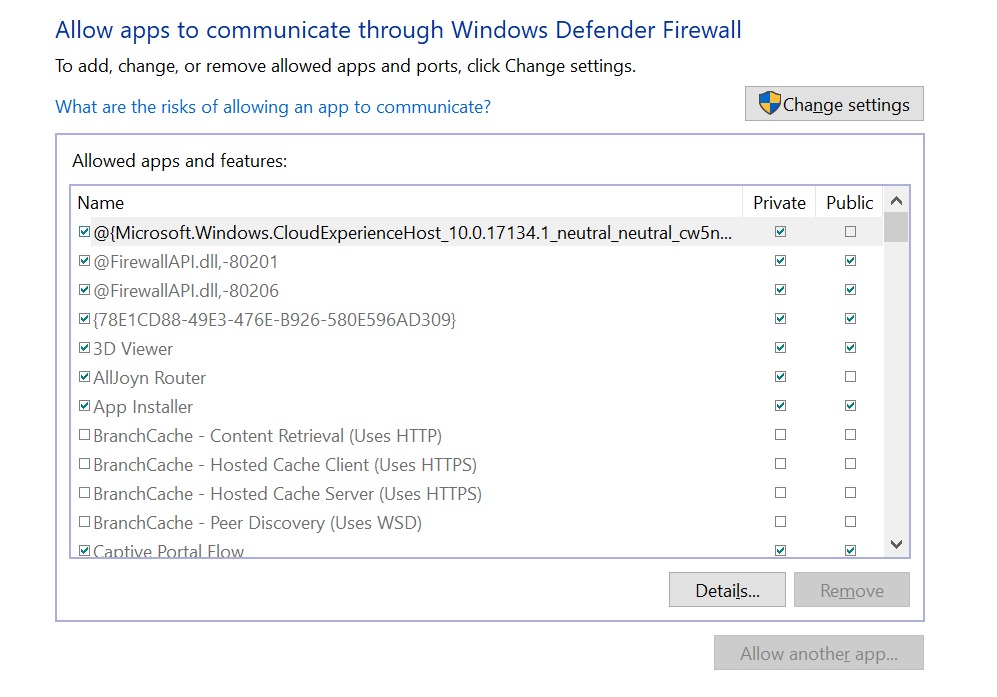
This is the “allowed apps” screen in Windows Defender Firewall. To let Twitch through, you add your browser (or the Twitch app) here and make sure it’s ticked for your network type. This targets the fix precisely — Twitch gets through, while everything else stays protected.
specifically.
On Windows: open Windows Defender Firewall, choose “Allow an app through firewall,” and add your browser or the Twitch app. This is the targeted fix — it opens the door for Twitch without opening it for everything.
Restart your router.
Boring, but it clears cached network routes and re-establishes fresh connections. It fixes more than it has any right to.
Flush your DNS cache.
If your system is holding onto outdated server records, this clears them. On Windows, it’s one command: ipconfig /flushdns.
✅ Quick fix: Open Command Prompt and run ipconfig /flush DNS. It clears outdated network records in seconds and fixes a surprising number of “network error” problems on its own.
Flushing the DNS Cache
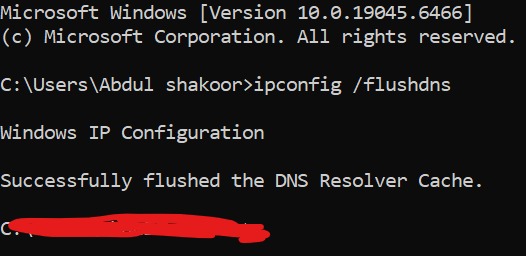
Running ipconfig /flushdns clears out any outdated network records your system might be holding onto. It’s a quick command, and it often resolves connection errors caused by your device pointing at the wrong servers.
Keeping streams smooth without lowering your guard
Once it’s working, a few habits keep it that way — without compromising security.
Keep your firewall on, always. The goal was never to remove protection; it was to make one specific exception. Lean on trusted networks where you can — your own home connection will almost always behave better than locked-down public or campus Wi-Fi. Keep your system updated, since OS updates quietly improve compatibility with streaming protocols. And keep an eye on browser extensions — some of them interfere with Twitch’s APIs and cause playback problems that look exactly like network errors but aren’t.
The takeaway
When Twitch throws a network error and your internet is clearly fine, stop blaming your connection and start looking at your security stack. Nine times out of ten it’s a firewall rule, a VPN’s shared IP, or an API-protection filter doing its job a little too enthusiastically.
The fix is almost never to tear down your security — it’s to configure it so Twitch and your firewall can coexist. Allow the stream specifically, switch VPN servers if you need to, and leave the protection that’s quietly keeping you safe exactly where it is. You get your stream back and you keep your guard up. That’s the balance worth aiming for.
If you want to understand the security side more deeply, it’s worth reading how firewalls protect networks from cyber attacks — it explains the protective side of the same technology that’s occasionally inconveniencing your stream.
Frequently asked questions
Why does Twitch say “network error” when my internet is fine?
Because the error usually isn’t about speed. A firewall rule, a VPN’s shared IP address, or an API-security filter is interrupting Twitch’s traffic, even though your connection itself is working perfectly.
Should I turn off my firewall to fix Twitch?
No. Disabling your firewall exposes your whole system to real threats. Instead, allow Twitch (or your browser) through the firewall specifically — a single narrow exception, not an open door.
Why does Twitch break only when my VPN is on?
VPN servers use shared IP addresses, and Twitch’s anti-abuse system can mistake that shared traffic for bots. Switching to a different, less crowded VPN server usually fixes it.
Which firewall setting most commonly blocks Twitch?
Restrictions on port 443 (HTTPS) are the most frequent cause, followed by “advanced threat protection” features on home routers that block Twitch’s CDN servers.
For more practical security explainers, explore our API Security and Networking guides.

Abdul Shakoor writes practical, defensive cybersecurity and networking guides for SentrixHub. He focuses on making API security, mobile app security, authentication, and network concepts simple for beginners and developers.