
By Abdul Shakoor · SentrixHub
The Cash App screenshot scam is one of the most common tricks on peer-to-peer payment apps, and it starts innocently. You’re selling something online — a phone, a pair of sneakers, concert tickets. A buyer messages you, seems keen, and moments later sends a screenshot: “Payment sent! ✅ $200 via Cash App.” The image looks perfect — the green checkmark, the amount, the timestamp, your name. So you hand over the item. And the money never arrives.
This scam works because a screenshot feels like proof, when in reality it’s just a picture — and pictures can be faked in seconds. This guide walks through exactly how these scams operate, the red flags that give them away, and the simple habits that keep you from ever losing money to a doctored image.
Why a screenshot is not proof of payment
Here’s the core truth the whole scam depends on: a screenshot shows what someone wants you to see, not what actually happened. Anyone can edit an image, use a fake-payment-generator app, or simply mock up a convincing Cash App screen. There are entire apps built purely to produce fake payment confirmations that look identical to the real thing.
Real money moving into your account leaves one trail that matters: it shows up in your Cash App balance and your transaction history. A screenshot from the sender proves none of that. This is the same principle behind almost every payment-proof scam — the same reasoning we cover in guides on fake e-challan links that capture OTPs, where an official-looking image or message is used to manufacture false trust.
📌 The core of the scam: A screenshot shows what someone WANTS you to see, not what actually happened. Images can be edited in seconds, and there are apps built purely to generate fake payment confirmations. A picture is never proof that money moved.
How the Scam Unfolds
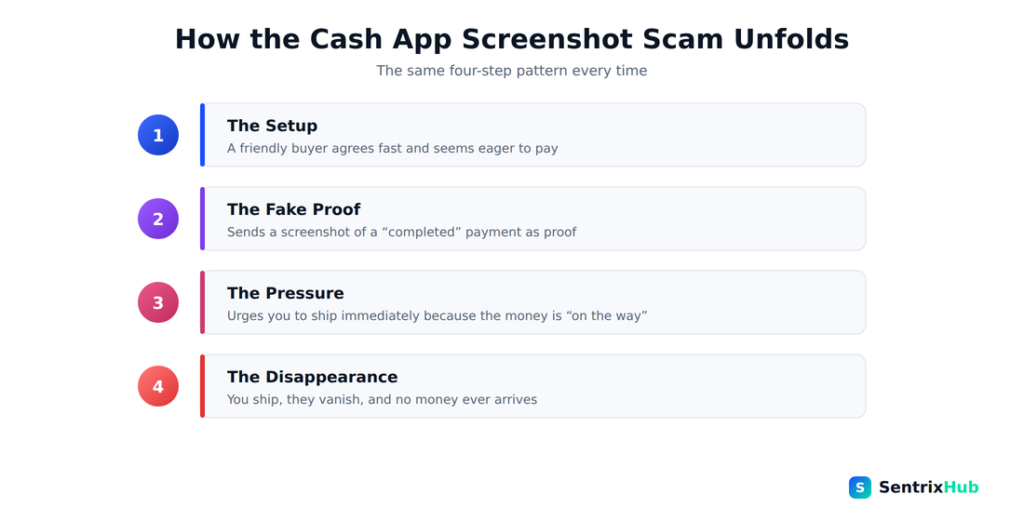
Every version of this scam follows the same four steps, from
a friendly setup to a sudden disappearance. Knowing the pattern makes
it easy to spot early.
How the Cash App screenshot scam works
The mechanics are almost always the same, and seeing them laid out makes the trick obvious.
The setup. The scammer responds to your sale, agrees to your price quickly, and acts friendly and eager — often pushing to close fast. The fake proof. They send a screenshot showing a completed payment: the right amount, a checkmark, maybe even a fake “pending” note to explain why you can’t see it yet. The pressure. They urge you to ship the item or hand it over immediately, claiming the money is “on the way” or “processing on their end.” The disappearance. Once you’ve given up the item, they vanish — blocked, deleted, gone. The payment was never sent, and there’s nothing in your account.
Some versions add a twist: the scammer “accidentally overpays” with a fake screenshot and asks you to refund the difference in real money — so you actually send them cash on top of losing your item.
⚠️ Watch for the “overpayment” trick: Some scammers send a fake screenshot showing they paid too much, then ask you to refund the difference in real money. Now you’ve lost your item AND sent them actual cash. Never refund against a screenshot.
Watch: The Scam in Action
If you’d like to see how these scams play out in real conversations, the video above breaks down the fake-screenshot tactic with examples. Watching the pattern once makes it much easier to recognise the next time a buyer sends you “proof” of payment.
The red flags that give it away
Once you know the pattern, the warning signs jump out. Be alert when a buyer sends a screenshot instead of letting the payment simply appear in your account. Watch for a manufactured sense of urgency — “I’ve paid, please ship now, I’m in a hurry.” Be suspicious of a brand-new account with no history or reviews, of a “pending payment” excuse for why the money isn’t visible yet, and of any request to refund an overpayment.
Small details in the image can betray it too: a slightly wrong font, misaligned text, an odd timestamp, or a name that doesn’t quite match. And treat any push to move off the platform’s normal flow as a warning in itself. The same instinct that helps people spot NADRA verification scams applies here — official-looking doesn’t mean genuine.
What a Fake Payment Screenshot Looks Like
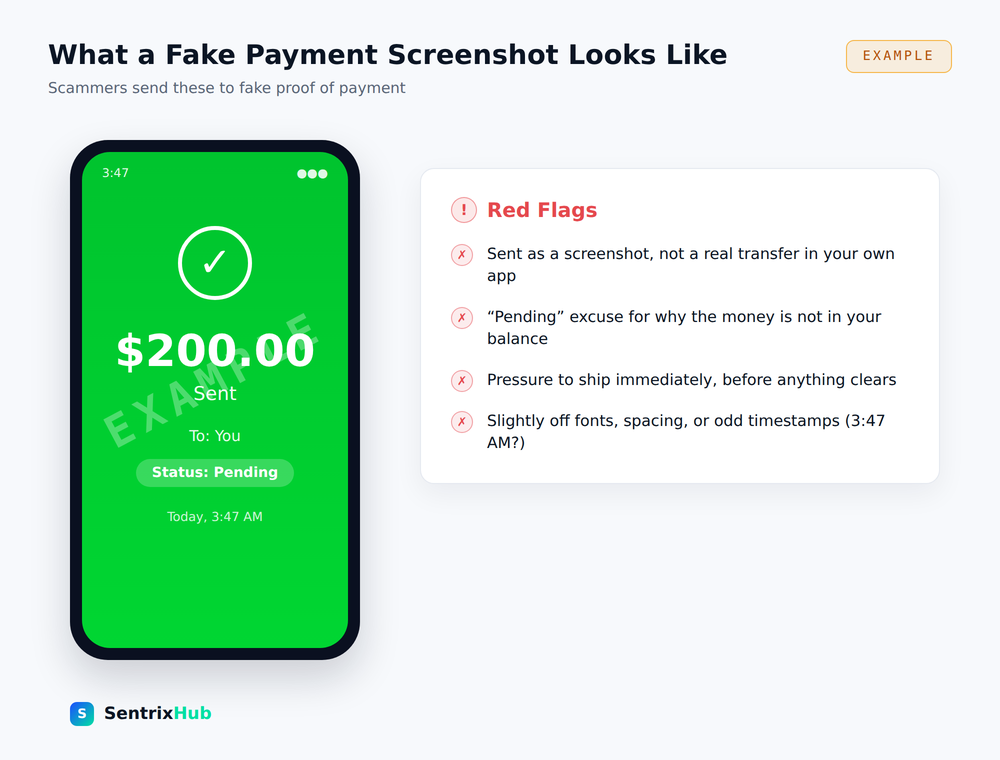
Scammers rely on the fact that a screenshot feels like proof.
This example shows the tell-tale signs — a ‘pending’ excuse, pressure
to ship, and small visual mistakes. Real money shows up in your own
balance, never as an image someone sends you.
The one habit that defeats this scam
If you remember nothing else, remember this: only trust money you can see in your own Cash App balance.
Open the Cash App yourself. Check your own balance and your own activity feed. If the payment is real, it’s there. If it isn’t there, it didn’t happen — no matter how perfect the screenshot looks, no matter how convincing the buyer sounds. Never ship, hand over, or refund anything based on an image someone sent you. This single habit closes the door the entire scam relies on, in the same way that verifying directly with the source shuts down the payment-pressure tactics we describe in the Cardholder Services scam.
✅ The rule that ends this scam: Only trust money you can see in your OWN Cash App balance. Open the app yourself and check your activity feed. If it’s there, it’s real. If it isn’t, it didn’t happen — no matter how perfect the screenshot looks. Never ship, hand over, or refund based on an image.
What to do if you’re targeted
If a buyer starts pushing screenshots and urgency, slow everything down. Don’t release the item. Verify the payment inside your own app, not through anything they’ve sent. If the money isn’t in your balance, simply tell them you’ll proceed once it lands — a real buyer accepts this without complaint; a scammer suddenly gets angry or disappears, which tells you everything.
If you’ve already been scammed, report the user inside Cash App, contact Cash App support, and report the incident to your local consumer-protection or cybercrime authority. Keep records — chat logs and the fake screenshot itself are useful evidence. Being cautious with unknown links and staying alert to how easily scammers manufacture trust is part of the same defensive mindset.
The bigger lesson
The Cash App screenshot scam is really a lesson about digital proof in general: an image is not evidence, and urgency is a tactic, not a coincidence. Whether it’s a payment confirmation, a delivery notice, or a verification message, the same rule holds — verify through the real system, from your side, before you act. Protecting your accounts with strong, unique passwords and a habit of independent verification is what keeps you a step ahead of people who are counting on you to trust the picture instead of the facts.
Sell smart, verify from your own app, and a doctored screenshot becomes exactly what it is: a harmless image with no power over you.
📌 Learn the shape, not just this scam: An image is not evidence, and urgency is a tactic, not a coincidence. Whether it’s a payment confirmation, a delivery notice, or a verification message — verify through the real system, from your side, before you act.
Frequently asked questions
Can you fake a Cash App payment screenshot?
Yes, easily. Images can be edited, and there are apps designed specifically to generate fake payment confirmations. A screenshot is never proof that money was actually sent.
How do I know if a Cash App payment is real?
Open Cash App yourself and check your own balance and activity feed. If the payment appears there, it’s real. If it isn’t there, it didn’t happen — regardless of any screenshot.
What is the Cash App overpayment scam?
A scammer sends a fake screenshot showing they “overpaid,” then asks you to refund the difference in real money — so you lose actual cash on top of your item.
What should I do if someone sends a fake payment screenshot?
Don’t release the item. Verify inside your own app, tell them you’ll proceed once the money lands, and report the user to Cash App if they pressure you or disappear.
Is it safe to ship an item based on a screenshot?
No. Never ship, hand over, or refund based on a screenshot someone sends you. Only act on payments you can see in your own Cash App balance.
For related reading, see our guides on fake e-challan OTP scams, NADRA verification scams, the Cardholder Services scam, and staying safe with strong passwords.

Abdul Shakoor writes practical, defensive cybersecurity and networking guides for SentrixHub. He focuses on making API security, mobile app security, authentication, and network concepts simple for beginners and developers.