
A few nights ago I opened the Nayatel app just to check my remaining data. Out of habit, I tapped Connected Devices. Most of the list made sense: my desktop, a couple of family phones. But two entries named “Tenda” showed up as Unknown access, and one device listed only as “Unknown” had downloaded 1.7 GB since the last reboot of my ONT.
That is the exact moment this guide is written for. You see a name you do not recognize, your internet has been slow all week, and you want that device gone.
Below I will show you two ways to disconnect someone from WiFi. The first uses your TP-Link router’s admin panel, so you do not need any app at all. The second is the shortcut I actually use at home: the Nayatel app itself, with real screenshots from my own connection.
Before you block anything, understand what actually works
Most guides jump straight to MAC filtering and stop there. Here is the part they skip.
When you block a device by its MAC address, the router refuses that specific piece of hardware. It works instantly, and it is perfect for kicking one freeloader off tonight. But a MAC address is not a fingerprint. Any moderately technical person can change (spoof) their device’s MAC in about a minute and walk right back in.
Changing your WiFi password is the opposite. It is slightly annoying because every device in your house has to reconnect, but it locks out everyone who is not supposed to be there, permanently, no matter what MAC they show up with.
So the honest answer is: block by MAC for speed, change the password for certainty. In most real cases you should do both.
⚠️ MAC blocking is a quick fix, not a lock. MAC addresses can be spoofed in about a minute, so anyone determined can return. Whenever you block a stranger, change your WiFi password as well.
Method 1: Disconnect someone from WiFi using the TP-Link admin panel
This is the “without an app” method. Everything happens in your browser.
Step 1: Log in to your router
Open any browser on a device that is already connected to your WiFi and go to 192.168.0.1 or 192.168.1.1. On most TP-Link routers, tplinkwifi.net also works.
You will see a login screen. If you never changed the credentials, they are usually admin / admin, and they are printed on the sticker under the router.
One thing before you continue: if your router still accepts admin/admin, fix that today. Default logins sit at the top of every attacker’s list, right next to the other dangerous passwords people still use. Anyone on your network can reach this login page.
📌 Can’t reach 192.168.0.1? Try 192.168.1.1 or tplinkwifi.net. The correct address and the default login are printed on the sticker under your router.
Step 2: Open the connected devices list
Where this lives depends on your firmware:
- Newer TP-Link routers (blue interface): the Network Map on the home screen shows Clients directly. Tap it to expand the full list.
- Older TP-Link routers (green interface): go to DHCP and open the DHCP Clients List.
Either way, you get device names, IP addresses, and MAC addresses for everything currently connected.
Step 3: Work out which device is which (do not rush this part)
This is where people make mistakes, and I nearly made one myself.
Those two “Tenda” entries on my network looked suspicious at first glance. Tenda is a brand that makes repeaters and extenders, so before blocking anything I had to confirm whether they belonged to my own setup or to someone outside. An unknown-looking entry can easily be your own range extender, smart TV, or a family member’s second phone.
Three practical checks that take five minutes:
- Count your devices. Phones, laptops, TV, extender. If the router shows nine devices and you can only account for six, something is off.
- Turn WiFi off on your own devices one at a time and refresh the list. Whatever never disappears while all your devices are off does not belong to you.
- Match MAC addresses. On Android, Settings then About phone then Status shows the WiFi MAC. Compare it against the list.
Only block a device once you are sure it is not yours. Blocking your own extender takes half your house offline and you will spend an hour figuring out why.
Step 4: Block the device
On the newer blue interface, go to Advanced, then Security, then Access Control. Turn Access Control on, choose Blacklist (some firmware calls it Deny List), and add the device straight from the online devices table. On older green firmware, the same feature lives under Wireless, then Wireless MAC Filtering, where you add the MAC address and set the rule to Deny.
TP-Link documents both paths in their official Access Control guide if your menus look different: How to Block Devices from Your Wi-Fi (opens in new tab).
Save, and the device drops off your network immediately. Most models do not even need a reboot.
Step 5: Change the WiFi password anyway
Remember the spoofing problem from earlier. If you suspect a neighbor or a guest who saved your password months ago, the block is only half the job. Go to Wireless settings, set a new password of at least 12 characters, and let your own devices reconnect. That is the real eviction.
Method 2: The Nayatel app shortcut I use at home
If you are on Nayatel fiber like me, there is a good chance your WiFi comes straight from the Huawei ONT that Nayatel installed, and the Nayatel app can manage it directly. No IP addresses, no admin panel, just a toggle.
One note so nobody gets confused: if you run your own TP-Link router behind the Nayatel device, the devices connected to that TP-Link network are managed with Method 1. The app controls what connects to the Nayatel/Huawei side.
Open the app and head to Connected Devices
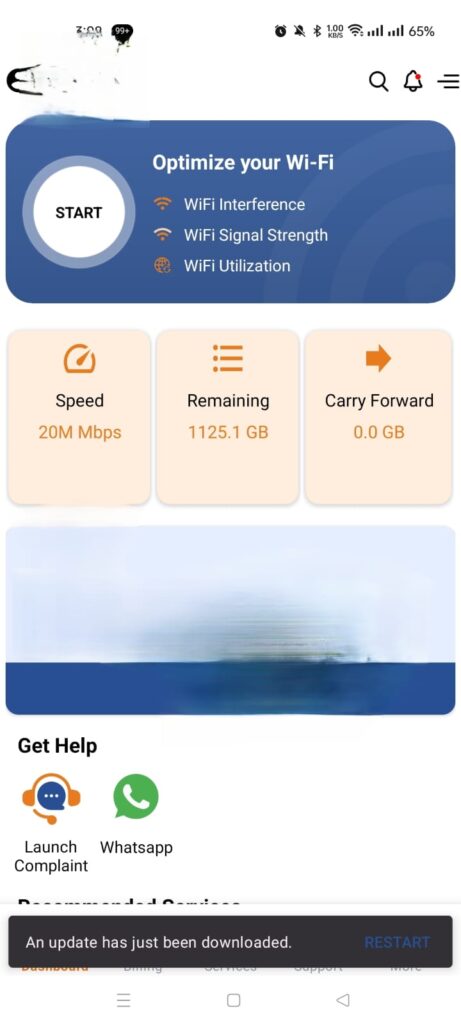
The dashboard shows your speed, remaining data, and a WiFi optimization tool. The part we need is the Connected Devices section, which lists everything currently on your network.
Read the device list carefully
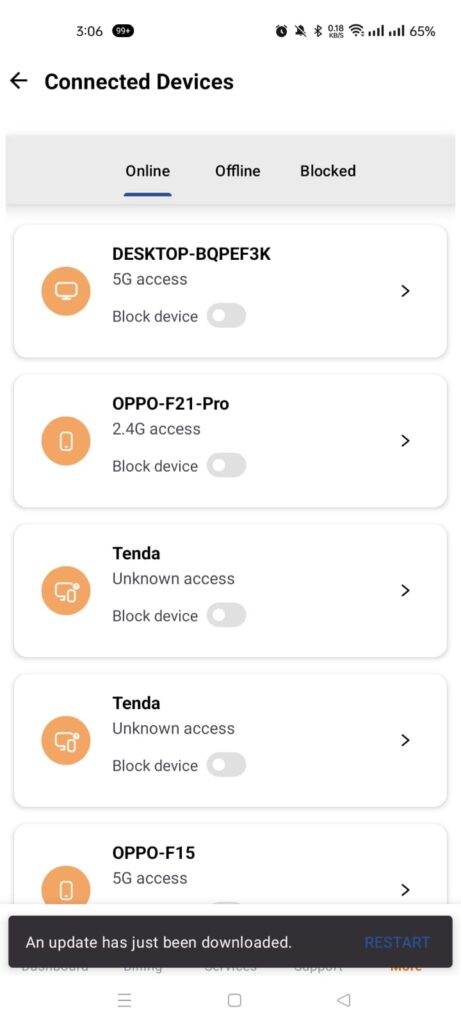
The list is split into Online, Offline, and Blocked tabs. Every device card shows its name, which band it is on (2.4G or 5G), and a Block device toggle right there on the card. This is where my two Tenda entries and the mystery “Unknown” device showed up between my desktop and the family phones.
Check the details before you flip that toggle
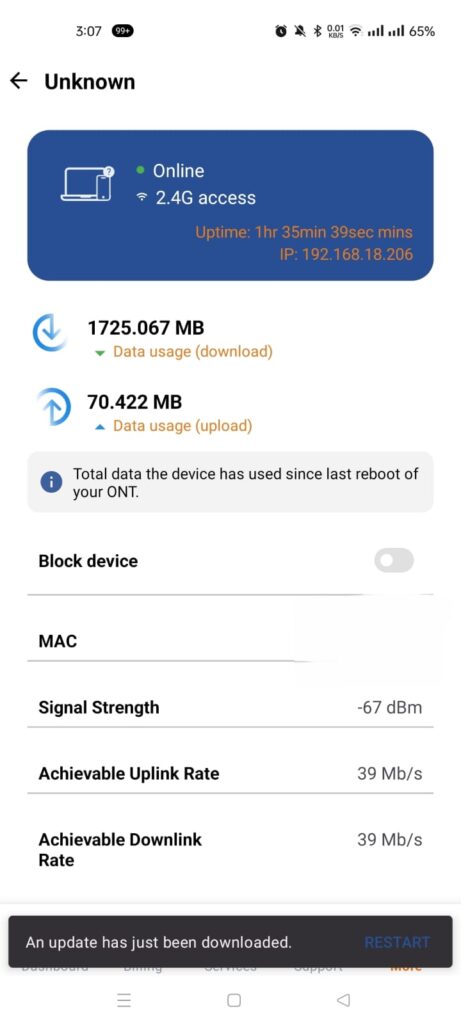
Tap any device and the app shows you three things that help you judge it. Data usage tells you how hungry the device has been: my Unknown entry had pulled 1725 MB down since the last ONT reboot, which is not nothing. Signal strength tells you how physically close it is: minus 67 dBm means the device is somewhere near the house, not three streets away. And the MAC address lets you match it against your own devices using the checks from Step 3 above.
If everything points to a stranger, flip Block device and it is gone.
Change your WiFi password from the app
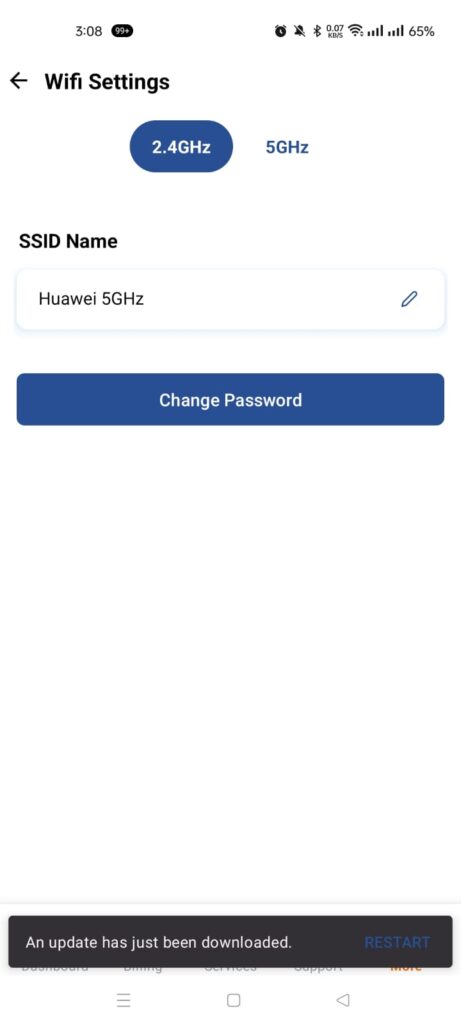
Go to WiFi Settings, pick the band, and tap Change Password. Do it for both 2.4GHz and 5GHz, because they are separate networks with separate passwords on most Huawei ONTs. This is the step that clears out everyone at once, including anyone you never spotted in the list.
✅ Cleanup done right: unknown device blocked, WiFi password changed on both bands, WPS turned off, and router admin password no longer admin/admin. If all four are true, your network is in better shape than most.
How strangers get on your WiFi in the first place
Almost every case comes down to one of three doors being left open.
The first is a shared or weak password. You gave it to a guest last Ramadan, they saved it, their cousin got it from them. Or the password itself is something a neighbor can guess in five tries.
The second is WPS, the push-button connect feature. Its PIN system has known weaknesses, and attackers have automated tools for it. If you have never used the WPS button, turn it off.
The third is the router’s own admin login still set to defaults, which lets anyone already on the network change your settings. Home networks are soft targets precisely because nobody is watching them; even enterprise WiFi networks with dedicated security teams get attacked, so an unwatched home router is easy work.
Keep them out for good
Blocking one device fixes tonight. These habits fix the year:
- Use a WiFi password of 12 or more characters, and do not reuse it anywhere else.
- Set encryption to WPA2 as a minimum, or WPA3 if your router offers it. Most newer WiFi 6 (802.11ax) hardware ships with WPA3 support.
- Turn off WPS and remote management. The FTC’s home WiFi security guide (opens in new tab) recommends disabling UPnP too if you do not need it.
- Put guests on a guest network so your main password never leaves the family.
- Update router firmware a couple of times a year, and keep the built-in firewall enabled. If you are curious what that firewall is actually doing for you, I explained it in how firewalls protect networks.
- Open your device list once a month. It takes five minutes in the Nayatel app and you will catch problems while they are small.
For what it is worth, offices solve this whole problem differently: instead of one shared password, every user authenticates individually through 802.1X authentication. Overkill for a home, but it shows where the shared-password model breaks down.
Quick comparison: which fix, when
| Action | How fast | How strong | Best for |
|---|---|---|---|
| Block by MAC address | Instant | Weak (can be spoofed) | Kicking one device off right now |
| Change WiFi password | Two minutes | Strong | Clearing out everyone for good |
| Guest network | One-time setup | Strong | Visitors, so this never happens again |
Final word
You do not need a special app, a technician, or a new router to disconnect someone from WiFi. Log in, identify carefully, block, and change the password. The identify step is the one worth slowing down for, because the scariest-looking entry in your list is sometimes just your own extender wearing an unfamiliar name.
Check your list this week. If my quiet 20 Mbps home connection had surprises waiting in it, yours might too.
Frequently asked questions
How do I disconnect someone from WiFi without an app on a TP-Link router?
Log in to the router at 192.168.0.1 or tplinkwifi.net, open the connected devices list, confirm which device does not belong to you, then block it under Access Control (newer firmware) or Wireless MAC Filtering (older firmware). Change your WiFi password afterward so the person cannot rejoin.
Where is MAC filtering on a TP-Link router?
On newer TP-Link routers it is under Advanced, then Security, then Access Control, using the Blacklist or Deny List mode. On older models it is under Wireless, then Wireless MAC Filtering.
Can I block WiFi users from the Nayatel app?
Yes. Open Connected Devices in the Nayatel app, tap the device, and switch on the Block device toggle. This works when your WiFi comes from the Nayatel-installed ONT. You can also change your WiFi password from the app under WiFi Settings.
Will the person know I blocked them?
They receive no notification. Their device simply loses internet access, and it may show as connected with no internet or fail to reconnect. To them it just looks like the network stopped working.
Can a blocked device reconnect later?
Possibly. MAC addresses can be changed through spoofing, which gets around a MAC block. That is why the reliable fix is changing your WiFi password along with blocking, so a new MAC alone is not enough to get back in.

Abdul Shakoor writes practical, defensive cybersecurity and networking guides for SentrixHub. He focuses on making API security, mobile app security, authentication, and network concepts simple for beginners and developers.